1. What is a WhatsApp Channel?
A WhatsApp Channel is a one-way broadcast tool that lets you send updates to unlimited followers. Unlike groups, followers can't reply or see each other — they only receive your messages.
WhatsApp launched Channels in September 2023, and by mid-2024, it crossed 500 million monthly active users. India is the #1 market for WhatsApp Channels, with creators, news outlets, and celebrities using it daily.
Perfect for: Content creators, news publishers, businesses, educators, spiritual leaders, and anyone who wants to share updates without managing noisy group chats.
2. Channel vs Group vs Broadcast List
| Feature | Channel | Group | Broadcast |
|---|---|---|---|
| Max members | Unlimited | 1,024 | 256 |
| Two-way chat | ❌ No | ✅ Yes | ❌ No |
| Members see each other | ❌ No | ✅ Yes | ❌ No |
| Public/discoverable | ✅ Yes | ❌ No | ❌ No |
| Your phone hidden | ✅ Yes | ❌ No | ❌ No |
| Best for | Broadcasting | Discussions | Personal updates |
3. Requirements Before You Start
Before creating a channel, make sure you have:
- Latest WhatsApp version — Update from Play Store or App Store
- Active phone number — Verified on WhatsApp
- Channel name ready — Can be changed later, but pick a good one
- Profile icon — Optional but recommended (minimum 640×640 pixels)
Note: You can only create channels on Android or iPhone. WhatsApp Web and Desktop don't support channel creation yet.
4. Create Channel on Android
Follow these steps to create your WhatsApp Channel on Android:
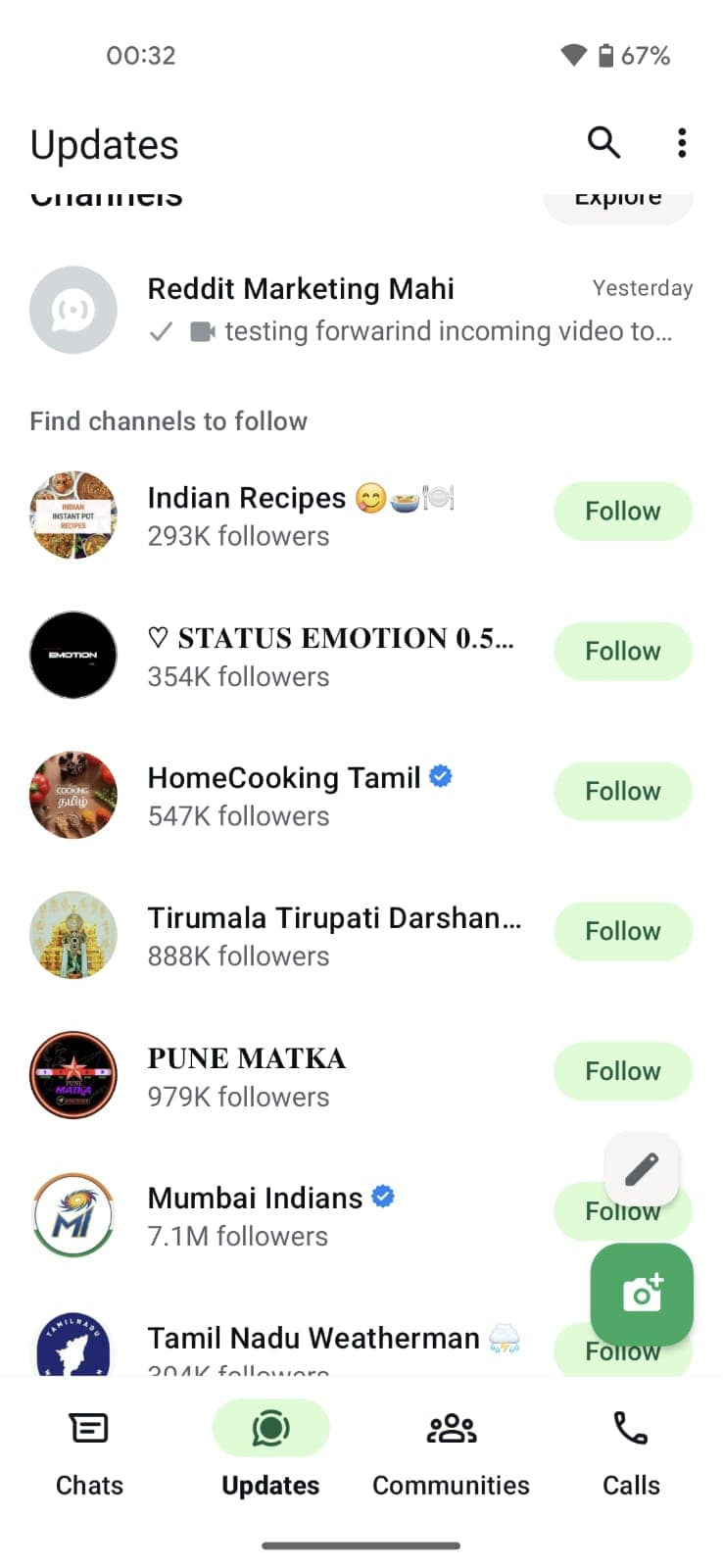
Step 1: Open Updates Tab
Open WhatsApp and tap the Updates tab at the bottom of the screen.
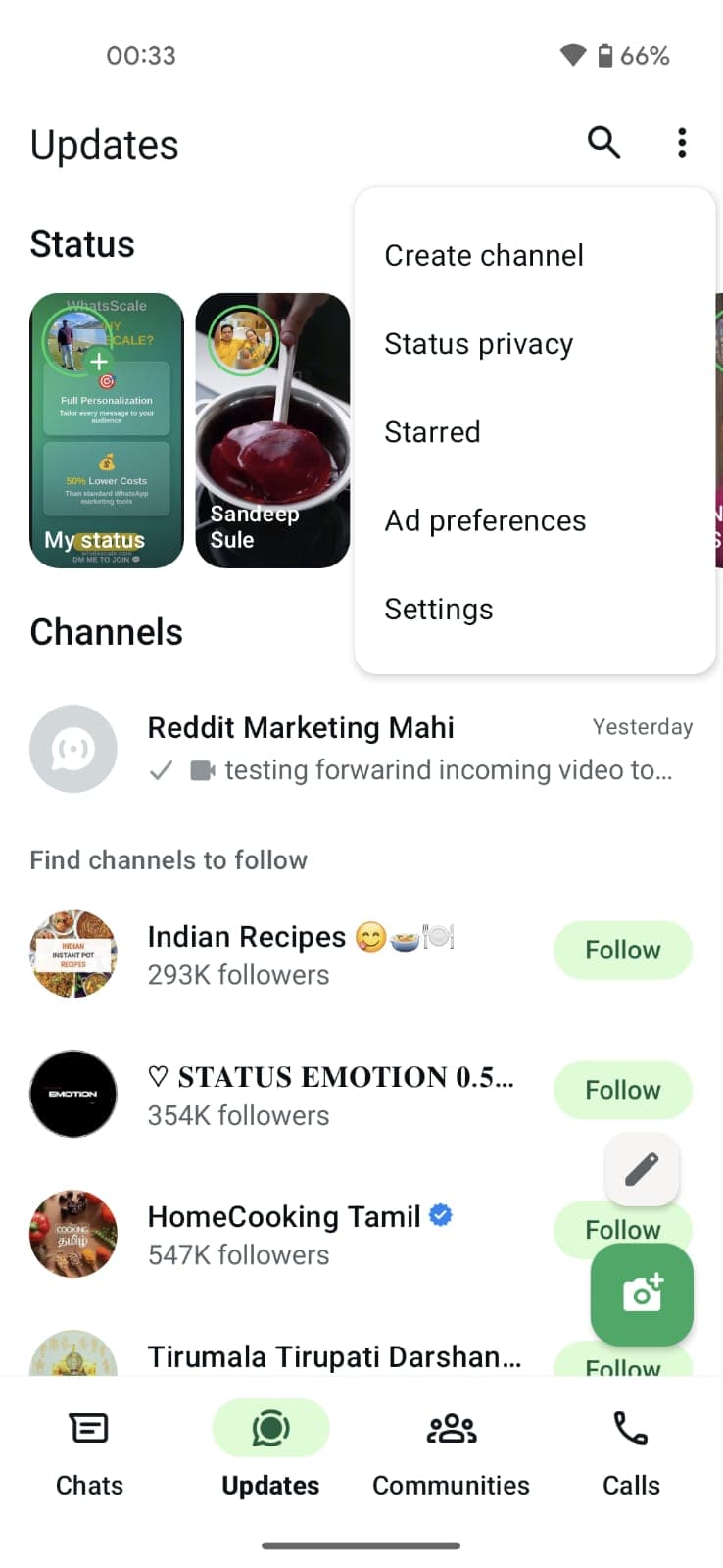
Tap the + (plus) icon near the top of the screen, then select "Create channel".
Step 3: Enter Channel Name
Type a name for your channel. This is what people will see when they discover your channel.
Tips for naming:
- Keep it short and memorable
- Include keywords (e.g., "Daily Rashifal" instead of just "Astrology")
- Add your brand/creator name if you have one
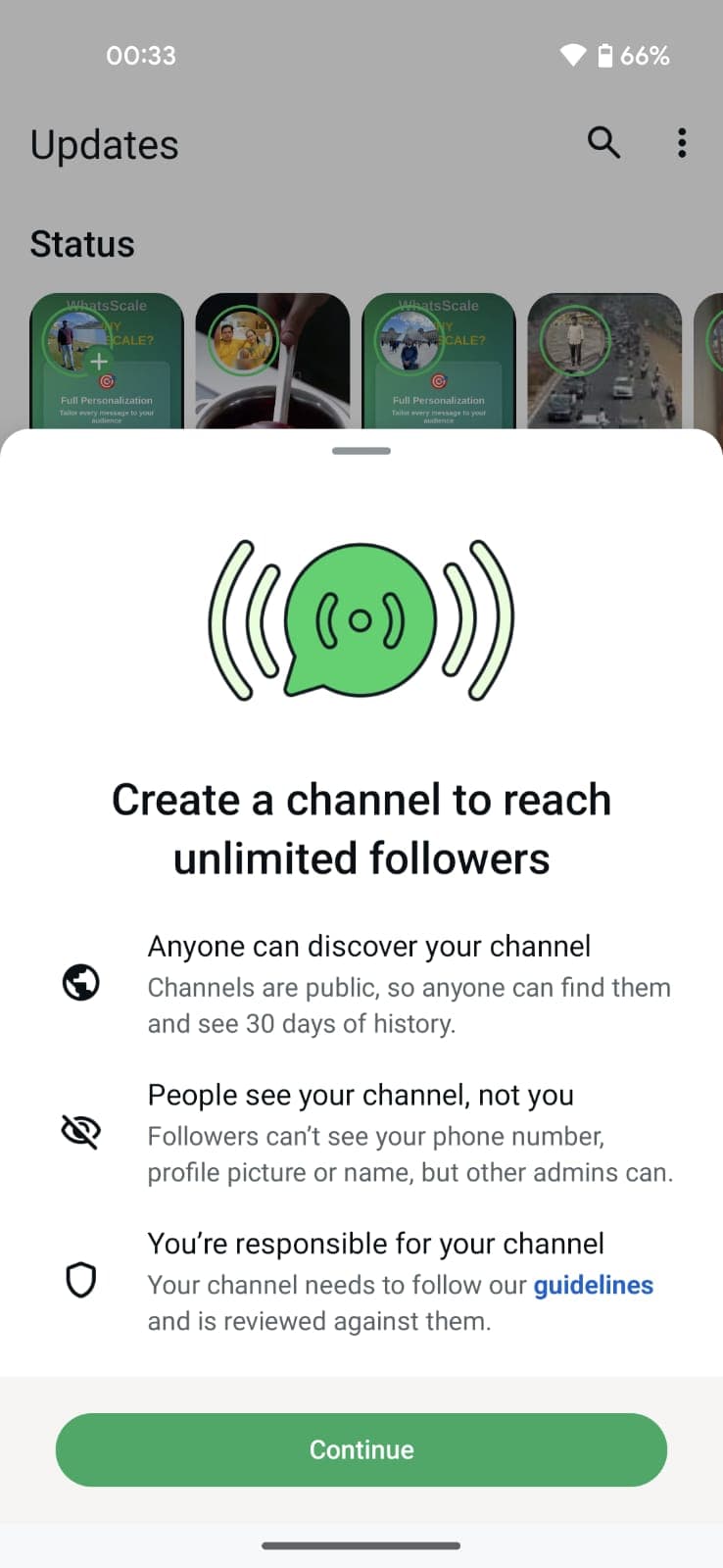
Step 4: Add Description & Icon
Add a brief description (what your channel is about) and upload a profile icon.
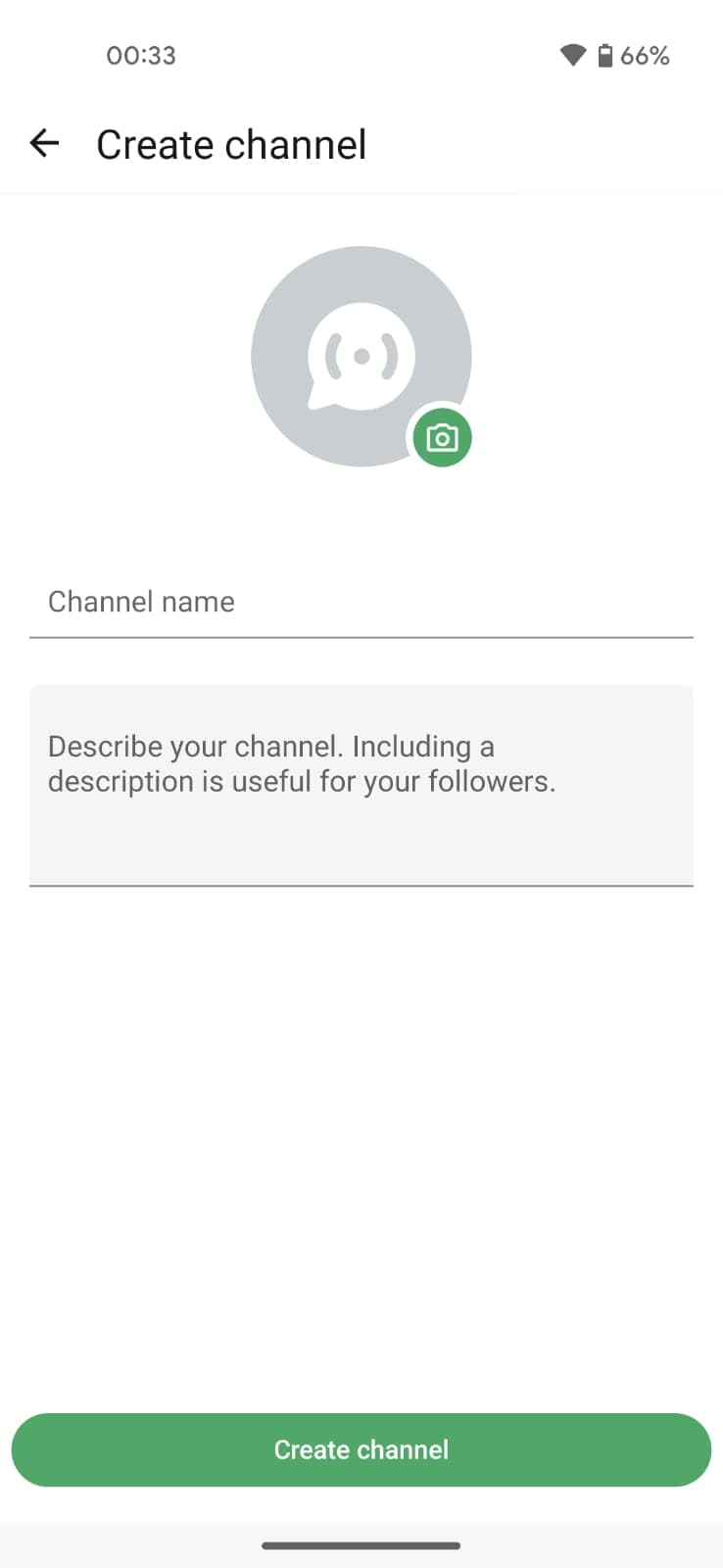
Step 5: Create Channel
Tap "Create channel" to finish. Your channel is now live!
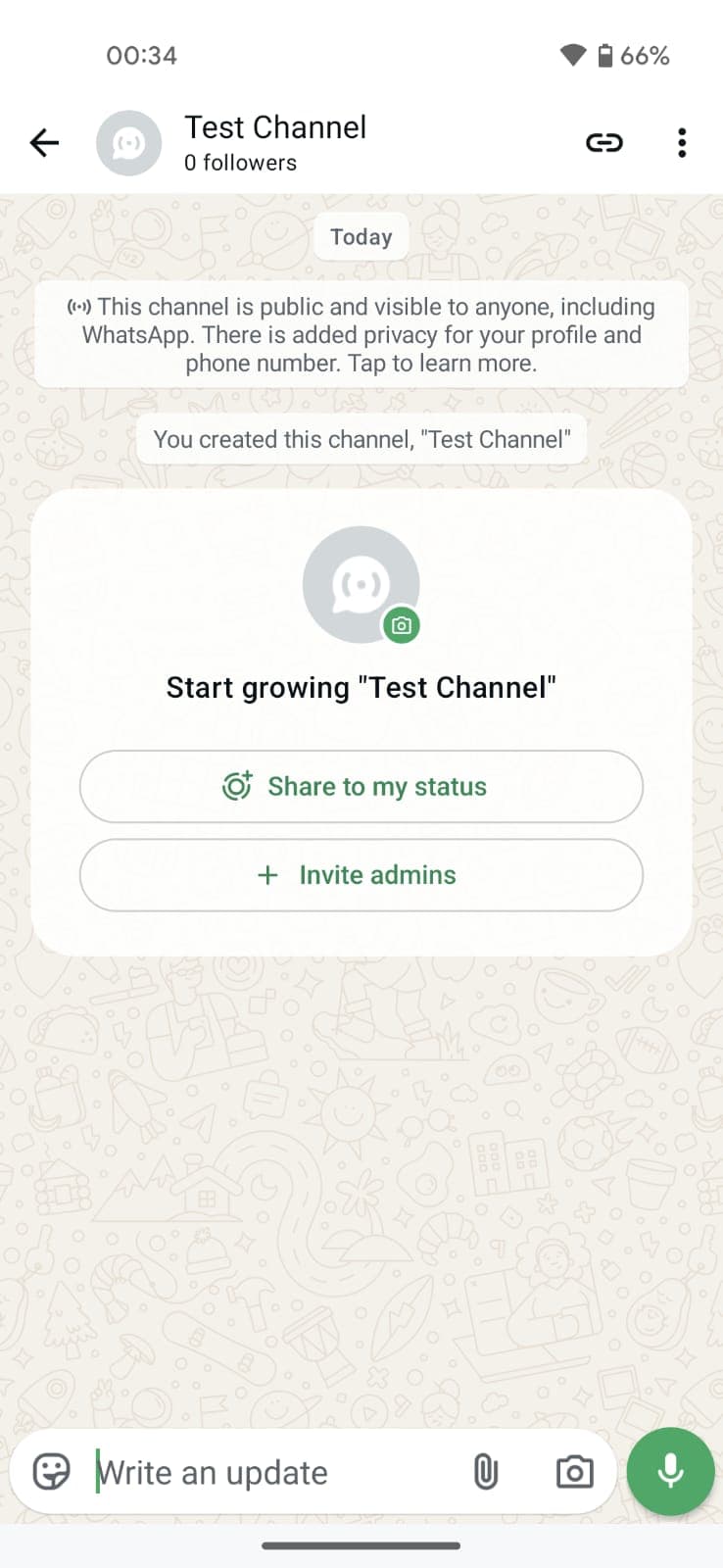
5. Create Channel on iPhone
The process on iPhone is nearly identical:
- Open WhatsApp → tap Updates tab (bottom)
- Tap the + icon → select "Create channel"
- Tap "Get Started" on the intro screen
- Enter your channel name
- Add description and icon (optional)
- Tap "Create Channel"
6. Customize Your Channel
After creating your channel, you can customize it further:
- Edit channel info — Tap channel name → Edit
- Add admins — Up to 16 admins can manage your channel
- Control discoverability — Choose if your channel appears in WhatsApp's directory
- Block screenshots — Prevent followers from screenshotting your posts
- Block forwarding — Prevent followers from forwarding your content
7. Create Your First Post
Now it's time to post! You can share:
- Text — Updates, announcements, quotes
- Images — Photos, graphics, infographics
- Videos — Up to 16MB (or 2GB with WhatsApp Business)
- Polls — Get feedback from followers
- Voice notes — Personal audio messages
- Stickers — Fun visual elements
Pro tip: Your first post should introduce yourself and tell followers what to expect. Something like: "Welcome! I'll be sharing daily motivation quotes every morning at 7 AM."
8. Share Your Channel Link
To grow your channel, share your invite link:
- Open your channel
- Tap the channel name at the top
- Tap "Share channel" or copy the link
- Share on Instagram, YouTube, Twitter, or your website
Your channel link looks like: https://whatsapp.com/channel/0029Va...
9. Tips to Grow Your Channel Followers
- Post consistently — Daily or at fixed times builds habit
- Cross-promote — Share channel link on all your social platforms
- Add to bio — Put your channel link in Instagram/YouTube bio
- Collaborate — Ask other creators to mention your channel
- Use WhatsApp Status — Remind your contacts to follow
- Provide value — Exclusive content that's not available elsewhere
10. Frequently Asked Questions
Can I create a WhatsApp Channel on PC/Desktop?
No, you can only create channels on Android or iPhone. However, once created, you can manage and post from WhatsApp Web or Desktop.
Is my phone number visible to followers?
No, your phone number is completely hidden. Followers only see your channel name and icon.
How many channels can I create?
You can create multiple channels from a single WhatsApp account. There's no official limit.
Can followers reply to my posts?
No, channels are one-way. Followers can only react with emojis, not send messages.
How long do channel posts stay visible?
Posts are visible for 30 days by default, then they disappear. Followers who join later won't see old posts.
Can I schedule posts to my channel?
WhatsApp doesn't have built-in scheduling. But you can use tools like WhatsScale to schedule posts automatically.
Can I monetize my WhatsApp Channel?
Yes! Check our guide on How to Monetize Your WhatsApp Channel for 5 proven methods.